POS-n-go Android POS Manual
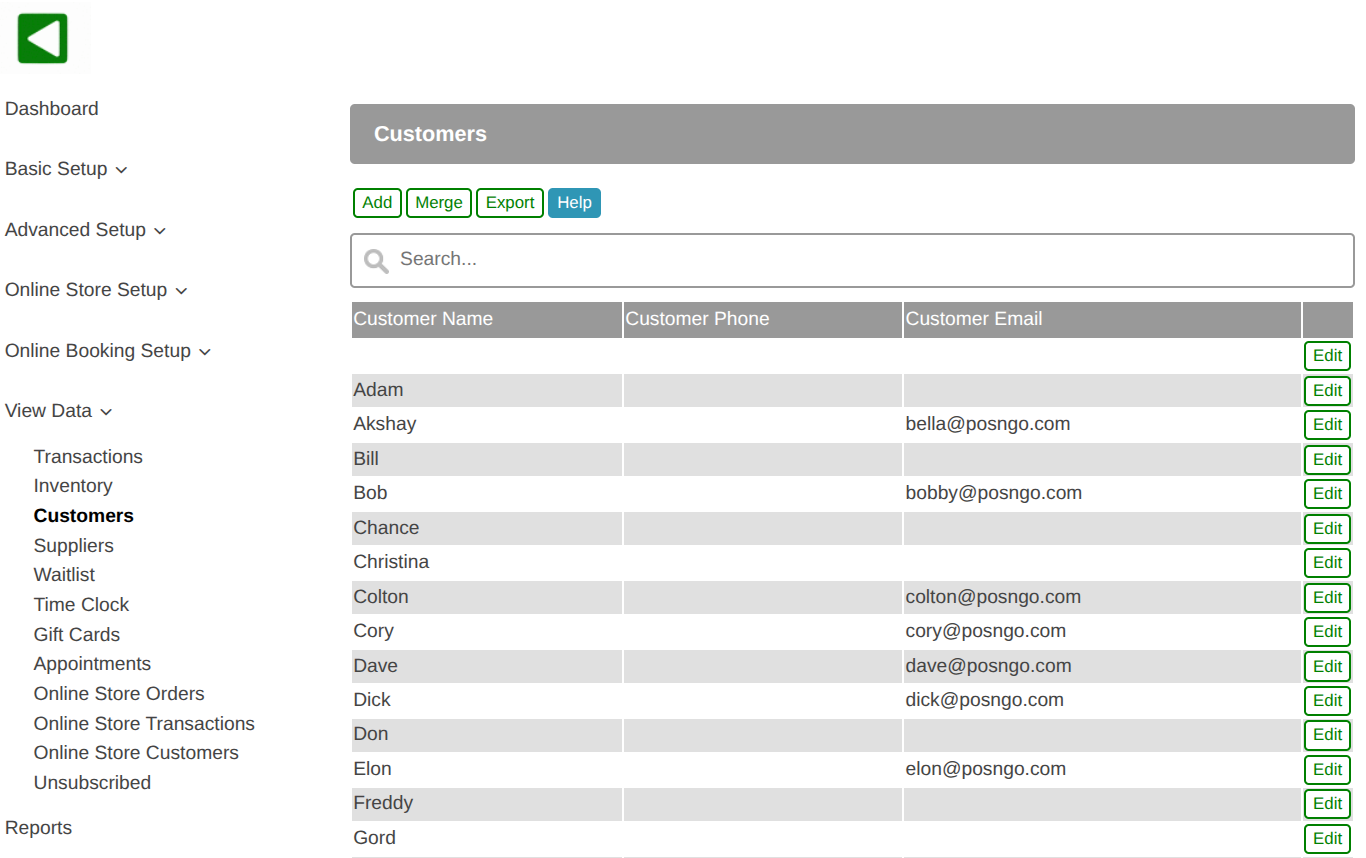
- Customers are viewed and managed in the web portal, View Data, Customers.
- A list of all customers is displayed.
- Use the search box to filter the list by customer name.
- To create a new customer select the Add button.
- To make changes to an existing customer select the Edit button.
- To merge duplicate customers based on matching phone number or email address select the Merge button.
- The Export button allows you to export the list of customers in CSV format for a spreadsheet.
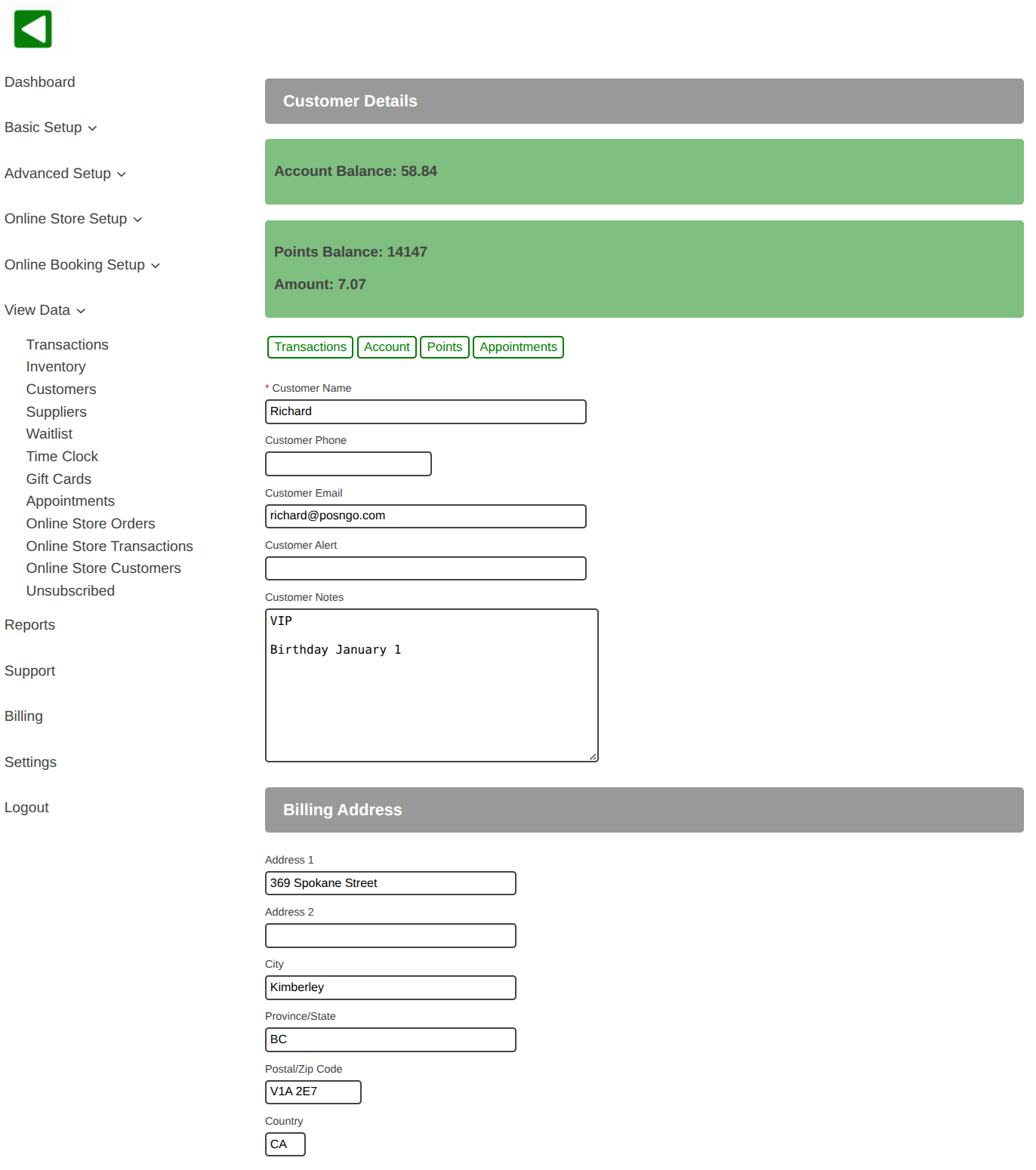
- The customer details displays the account balance and points balance.
- All customer information can be viewed and updated including the name, phone number, email address, alert, notes, billing address and shipping/delivery address.
- If customer pictures are used they are also displayed.
- To view the customer transaction history select the Transactions button.
- To view the customer account transactions select the Account button.
- To view the customer points transactions select the Points button.
- To view the customer appointments select the Appointments button.
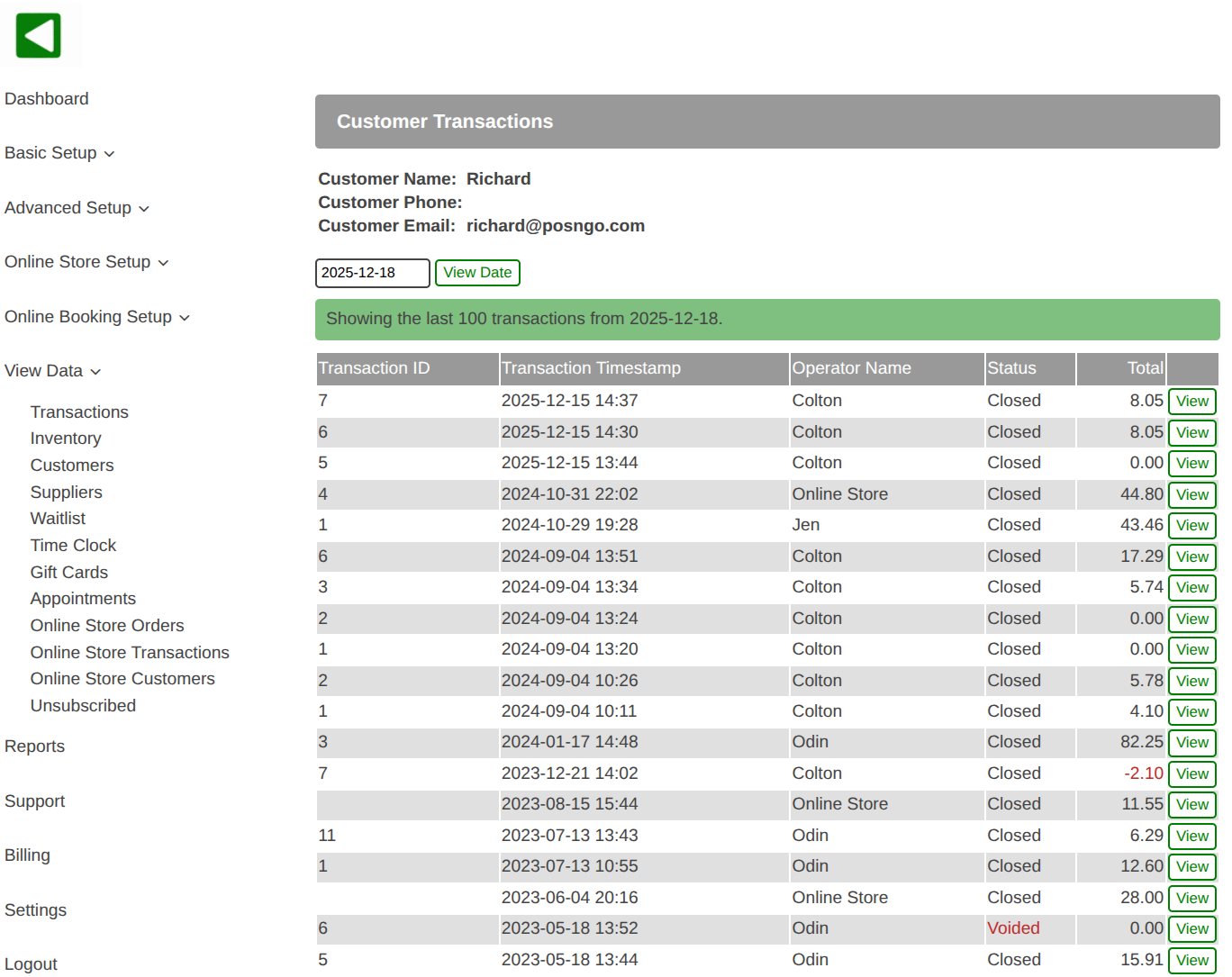
- A list of customer transactions is displayed.
- Optionally use the date to select a list of transactions from the past.
- To view individual transaction details select the View button.
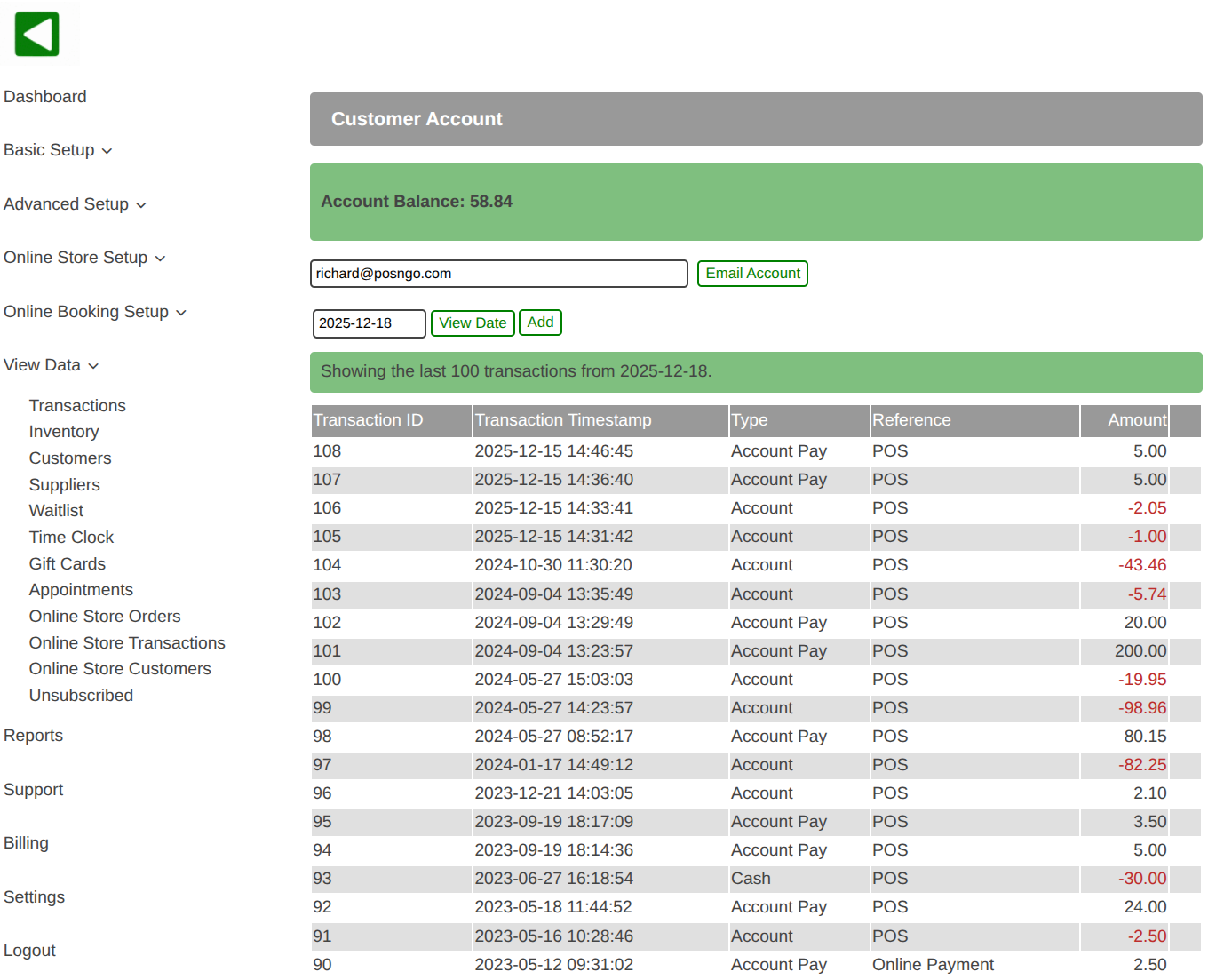
- A list of customer account transactions is displayed.
- Optionally use the date to select a list of transactions from the past.
- To send an account statement to an email destination select the Email Account button.
- To create a new transaction on the customer account select the Add button.
- To make changes to a transaction from the current day select the Edit button.
- Transactions from the past cannot be modified, create a new reversing transaction if needed.
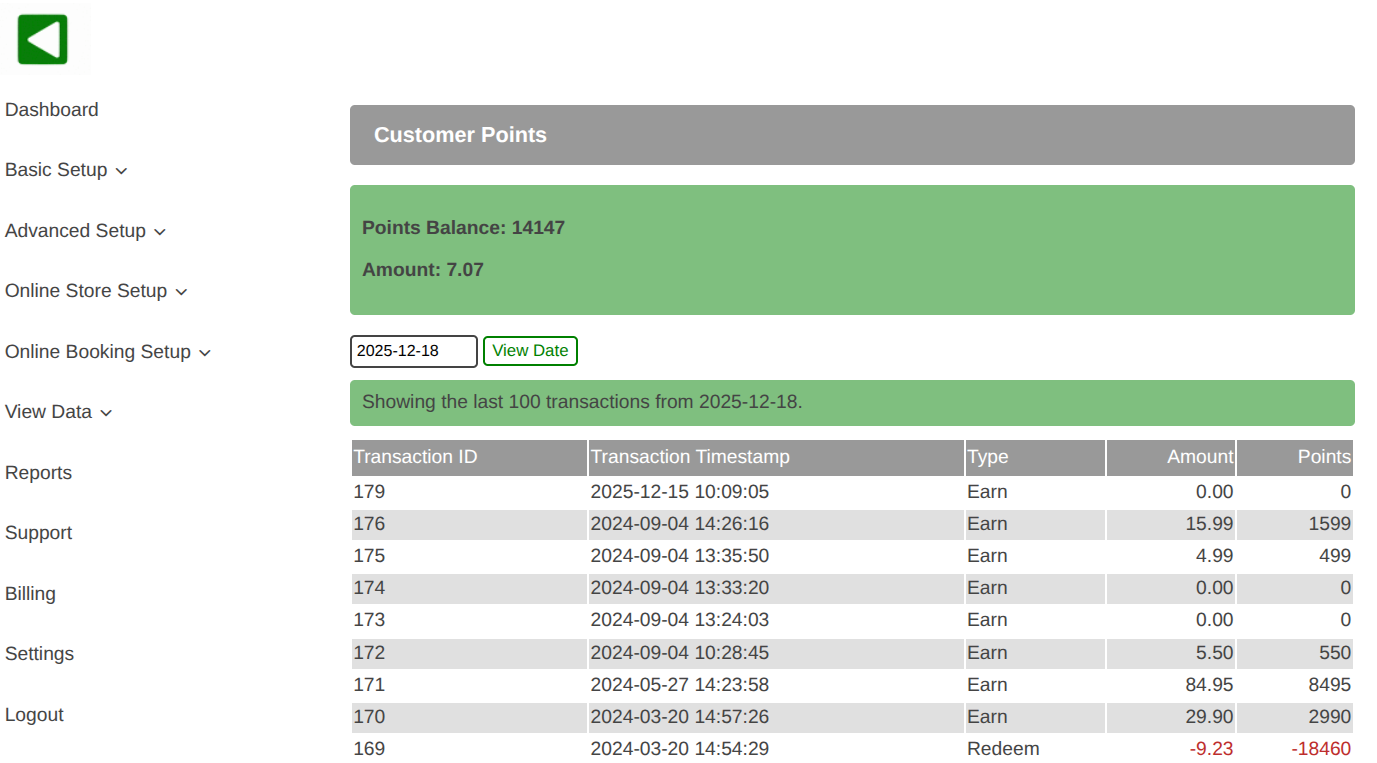
- A list of customer points transactions is displayed.
- Optionally use the date to select a list of transactions from the past.
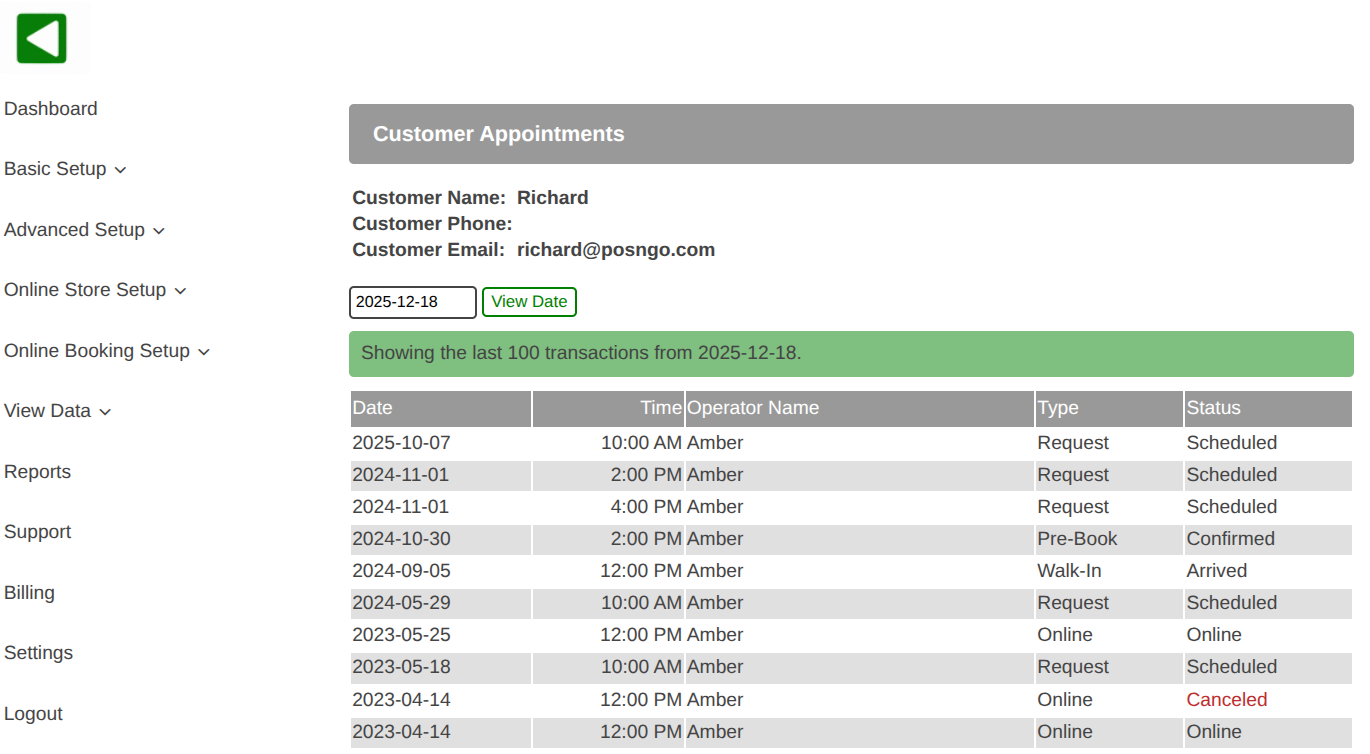
- A list of customer appointments is displayed.
- Optionally use the date to select a list of appointments from the past.